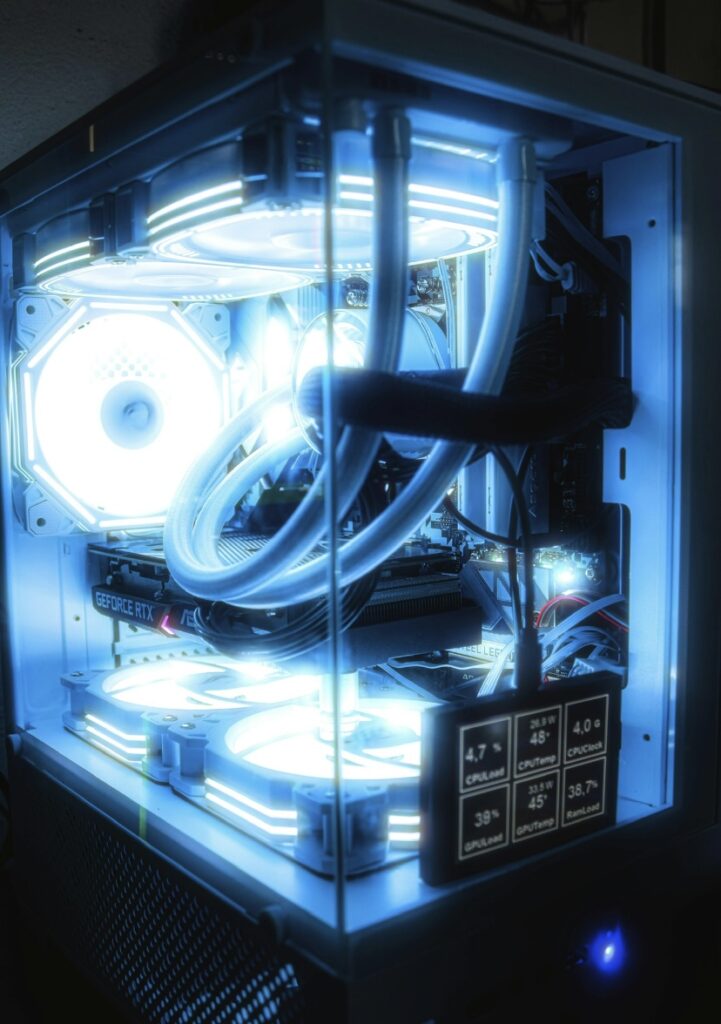
Building a desktop PC is a great way to understand how computer parts work together. A PC build setup means choosing the right components, installing them correctly, and preparing the computer to run smoothly.
The main parts of a desktop PC include the processor, motherboard, RAM, storage, power supply, case, cooling system, and sometimes a graphics card. Each part has an important job, and all of them must be compatible with each other.
For beginners, PC building may seem difficult at first, but it becomes easier when you follow the process step by step. With the right preparation, basic tools, and careful installation, anyone can build a reliable desktop computer.
Step 1: Prepare Your Workspace
Before you start building your PC, prepare a clean and safe workspace. Choose a large table with enough space for all your components. Make sure the area has good lighting so you can clearly see the motherboard, screws, cables, and small connectors.
Avoid building your PC on carpet because it can create static electricity. Static electricity can damage sensitive computer parts. It is better to work on a wooden or plastic table and touch a metal part of the computer case before handling components.
You should also prepare your basic tools. In most cases, you only need a Phillips screwdriver. It is also useful to keep cable ties, the motherboard manual, and the case manual nearby.
Before opening the parts, check that you have all the main components: CPU, motherboard, RAM, storage drive, power supply, case, CPU cooler, and graphics card if your build needs one.
When your workspace is clean, safe, and organized, you are ready to begin the PC assembly process.
Step 2: Install the CPU on the Motherboard
The CPU, also called the processor, is one of the most important parts of your PC. It works like the brain of the computer and handles most of the instructions needed to run programs and tasks.
Before installing the CPU, place the motherboard on its box or on an anti-static surface. This helps protect the motherboard while you work. Open the CPU socket carefully by lifting the small metal arm or bracket.
Next, look for the small triangle mark on the corner of the CPU. Match this triangle with the triangle mark on the motherboard socket. Gently place the CPU into the socket. Do not push it down with force. If it is aligned correctly, it should sit in place easily.
After the CPU is seated correctly, close the socket bracket and lock the metal arm back into position. This may require a little pressure, but it should not feel forced.
Once the CPU is installed, you are ready for the next step.
Step 3: Install the RAM
RAM, also called memory, helps your computer run programs smoothly. It stores temporary data while the PC is working. More RAM can help with multitasking, gaming, editing, and other demanding tasks.
Before installing the RAM, check your motherboard manual to find the correct RAM slots. If you are using two RAM sticks, most motherboards recommend using slots A2 and B2. These slots help the memory run in dual-channel mode for better performance.
Open the clips on the RAM slots. Hold the RAM stick by the edges and line up the notch on the RAM with the notch in the slot. The RAM only fits one way, so do not force it if it does not line up.
Press the RAM stick down firmly and evenly until it clicks into place. The clips should close automatically or lock around the RAM. Repeat the same process for the second stick if you have one.
After installing the RAM, check that each stick is fully seated and secure.
Step 4: Install the Storage Drive
The storage drive is where your operating system, programs, and files are saved. There are different types of storage drives, such as M.2 SSDs, 2.5-inch SSDs, and 3.5-inch hard drives. An SSD is usually faster than a traditional hard drive and helps the computer start and load programs more quickly.
If you are using an M.2 SSD, find the M.2 slot on the motherboard. Remove the small screw from the slot, insert the SSD at a slight angle, then gently press it down and secure it with the screw.
If you are using a 2.5-inch SSD or 3.5-inch hard drive, install it into the correct drive bay inside the case. Later, you will need to connect a SATA data cable from the drive to the motherboard and a SATA power cable from the power supply.
After the storage drive is installed, check that it is secure and ready for connection.
Step 5: Install the CPU Cooler
The CPU cooler keeps the processor at a safe temperature while the computer is running. Without proper cooling, the CPU can become too hot and the system may slow down or shut off to protect itself.
Before installing the cooler, check if thermal paste is already applied to the bottom of the cooler. If not, apply a small pea-sized amount of thermal paste in the center of the CPU. Thermal paste helps transfer heat from the CPU to the cooler.
Place the cooler carefully on top of the CPU. Make sure it lines up with the mounting holes or brackets on the motherboard. Tighten the screws slowly and evenly. If there are four screws, tighten them in a cross pattern to apply even pressure.
After the cooler is attached, connect the cooler fan cable to the CPU_FAN header on the motherboard. This connection allows the motherboard to control the fan speed and keep the CPU cool.
Once the cooler is installed, check that it is firmly attached and that the fan cable is connected properly.
Step 6: Install the Motherboard into the Case
After installing the CPU, RAM, storage, and CPU cooler, you can place the motherboard inside the computer case. The case protects the parts and helps organize airflow and cables.
First, remove the side panels from the case. Then check the motherboard standoffs inside the case. Standoffs are small metal supports that keep the motherboard raised above the case. Make sure they match the screw holes on your motherboard. Remove any extra standoffs that do not line up with the motherboard because they can cause damage.
If your motherboard has a separate I/O shield, install it into the back of the case before placing the motherboard inside. Some modern motherboards already have the I/O shield attached.
Carefully lower the motherboard into the case. Line up the rear ports with the I/O shield and match the screw holes with the standoffs. Once everything is aligned, screw the motherboard into place. Do not overtighten the screws.
After the motherboard is installed, check that it is secure and properly aligned.
Step 7: Install the Power Supply
The power supply, also called the PSU, provides electricity to all parts of the computer. It is very important to use a good-quality power supply with enough wattage for your components.
Place the power supply into the PSU area of the case. This is usually at the bottom or back of the case. If the case has a bottom air vent, face the PSU fan toward the vent so it can pull in cool air. If there is no vent, face the fan inside the case.
Secure the power supply with screws from the back of the case. After that, prepare the main power cables you will need. The most important cables are the 24-pin motherboard cable, the 8-pin CPU power cable, PCIe power cables for the graphics card, and SATA power cables for drives or accessories.
Connect the 24-pin cable to the motherboard. Then connect the 8-pin CPU power cable near the top of the motherboard. Make sure both cables click firmly into place.
After connecting the main power cables, leave the other cables ready for the graphics card, storage drives, and case accessories.
Step 8: Install the Graphics Card
The graphics card, also called the GPU, is responsible for producing images and video on your monitor. It is especially important for gaming, video editing, 3D design, and other graphics-heavy tasks. Some CPUs have built-in graphics, but many desktop builds use a dedicated graphics card for better performance.
First, find the top full-length PCIe slot on the motherboard. This is usually the best slot for the graphics card. Remove the matching metal slot covers from the back of the case so the graphics card ports can fit through.
Hold the graphics card by the edges and line it up with the PCIe slot. Press it down firmly and evenly until it clicks into place. After the card is seated, secure it to the case with screws.
If your graphics card requires extra power, connect the PCIe power cables from the power supply. Make sure the cables are fully inserted and secure.
After installing the graphics card, remember to connect your monitor cable to the graphics card ports, not the motherboard ports, if you are using a dedicated GPU.
Step 9: Connect the Case Cables
Case cables connect the buttons, lights, USB ports, audio ports, and fans on your computer case to the motherboard. These cables are small, so it is important to follow the motherboard manual carefully.
Start with the front-panel connectors. These usually include the power switch, reset switch, power LED, and hard drive LED. Connect each one to the correct pins on the motherboard. The power switch is the most important because it allows the case power button to turn on the PC.
Next, connect the front USB cables. Most cases include USB 2.0, USB 3.0, or USB-C connectors. These cables allow the USB ports on the front of the case to work.
Then connect the front audio cable. This cable is usually labeled HD AUDIO and connects to the audio header on the motherboard. It allows the headphone and microphone ports on the case to function.
Finally, connect the case fans to the motherboard fan headers or to a fan hub if your case has one. Good airflow helps keep the system cool and stable.
After connecting the case cables, check that every cable is secure and not touching any fan blades.
Step 10: Final Check Before First Boot
Before turning on the computer, it is important to check all connections. A final check can help prevent common problems and make the first boot easier.
Make sure the 24-pin motherboard power cable is fully connected. Then check the 8-pin CPU power cable near the top of the motherboard. If you are using a graphics card, make sure the PCIe power cables are connected properly.
Check that the RAM is fully seated in the slots and that the clips are locked. Also check that the CPU cooler is firmly installed and that the cooler fan cable is connected to the CPU_FAN header.
Look inside the case for any loose screws or cables. Make sure no cables are touching the fans. If needed, use cable ties to keep the cables neat and away from moving parts.
Also check that the monitor, keyboard, and mouse are ready. If you have a dedicated graphics card, connect the monitor cable to the graphics card, not the motherboard.
After this final check, your PC is ready for the first boot.
Step 11: First Boot and BIOS Setup
After checking all connections, you can turn on the computer for the first time. Plug the power cable into the power supply and turn on the PSU switch at the back of the case. Then press the power button on the front of the case.
If everything is connected correctly, the fans should start spinning and the system should show a display on the monitor. The first boot may take longer than usual, especially on a new build, so wait patiently for a few minutes.
When the system starts, enter the BIOS or UEFI by pressing the Delete key or F2 key during startup. Inside the BIOS, check that the CPU, RAM, and storage drive are detected. Also check the CPU temperature to make sure the cooler is working properly.
If your RAM supports XMP, EXPO, or DOCP, enable it in the BIOS. This helps the RAM run at its correct advertised speed. Then set the USB drive or operating system installer as the first boot device.
After saving the BIOS settings, the computer will restart and you can begin installing the operating systemStep 12: Install the Operating System
After setting the boot device in BIOS, the next step is to install the operating system. The operating system is the main software that allows you to use the computer. Common examples include Windows and Linux.
Insert your bootable USB drive into the computer. Restart the PC, and it should load the operating system installer. Follow the instructions on the screen to choose your language, keyboard layout, and installation type.
When the installer asks where to install the operating system, select your main storage drive. If this is a new drive, you may need to create or format a partition. Be careful during this step because formatting a drive will delete data on it.
After choosing the drive, start the installation. The computer may restart several times during the process. This is normal, so do not turn off the PC while the operating system is being installed.
Once the installation is complete, create your user account, set your password, and finish the basic setup. Your new PC will then be ready for driver installation and updates.
Step 13: Install Drivers and Updates
After installing the operating system, the next step is to install the correct drivers. Drivers are software that help the operating system communicate with your hardware. Without the right drivers, some parts of the PC may not work properly or may not give full performance.
Start by installing the motherboard chipset drivers. You can download them from the official motherboard manufacturer’s website. These drivers help the CPU, motherboard, USB ports, and other system features work correctly.
Next, install the graphics card driver if your PC has a dedicated GPU. Download the driver from the official NVIDIA, AMD, or Intel website, depending on your graphics card. This is important for gaming, video editing, and smooth display performance.
After installing the main drivers, run the operating system updates. For Windows, open Windows Update and install all available updates. Restart the computer when needed.
Finally, check that internet, sound, USB ports, Bluetooth, Wi-Fi, and display settings are working correctly. Once the drivers and updates are complete, your PC will be more stable and ready for daily use.
Step 14: Test System Performance and Stability
Before writing the final conclusion, it is useful to test your new PC and make sure everything is working correctly. Testing helps you find problems early, such as high temperatures, unstable memory, or missing drivers.
Start by checking the system information. Make sure the CPU, RAM, storage, and graphics card are detected correctly. You can do this through the operating system settings or system information tools.
Next, monitor the temperatures of the CPU and GPU. When the computer is idle, temperatures should usually be low. During heavy use, temperatures will rise, but they should stay within a safe range. If temperatures are too high, check the cooler installation, airflow, and fan connections.
You can also run basic performance tests or open several programs to see if the system runs smoothly. If you built the PC for gaming, try running a game and watch for crashes, overheating, or display problems.
Finally, organize the cables inside the case. Good cable management improves airflow and makes future upgrades easier. Once the PC is stable, clean, and running properly, it is ready for normal use.
Conclusion
Building a desktop PC may seem challenging at first, but it becomes much easier when you follow the process step by step. From preparing your workspace to installing the components, setting up the operating system, and testing performance, each stage plays an important role in creating a stable and reliable computer.
A successful PC build depends on patience, careful handling, and checking every connection before turning the system on. Beginners should take their time, read the manuals, and avoid rushing the installation process.
Once the setup is complete, you will have a custom desktop computer that matches your needs and gives you more control over performance, upgrades, and maintenance. Building your own PC is not only a practical skill, but also a great way to learn more about computer hardware.